2.2.4. Calls settings. IVR strategy
When the IVR strategy is selected, the incoming (IN) call will hear the menu options you have configured and will be able to choose the correct topic and, for example, the preferred language for communication.
‼️VIDEO (To enlarge the video, hold down the CTRL key and scroll the mouse wheel)
Interactive Voice Response (IVR) is an 'automated receptionist' that routes incoming calls based on the client's choices, e.g., 'Select a topic: Information -> press 1, Orders -> press 2.'
When an agent receives an incoming call, they will see which topic the client has selected.
Let's create IVR step by step:
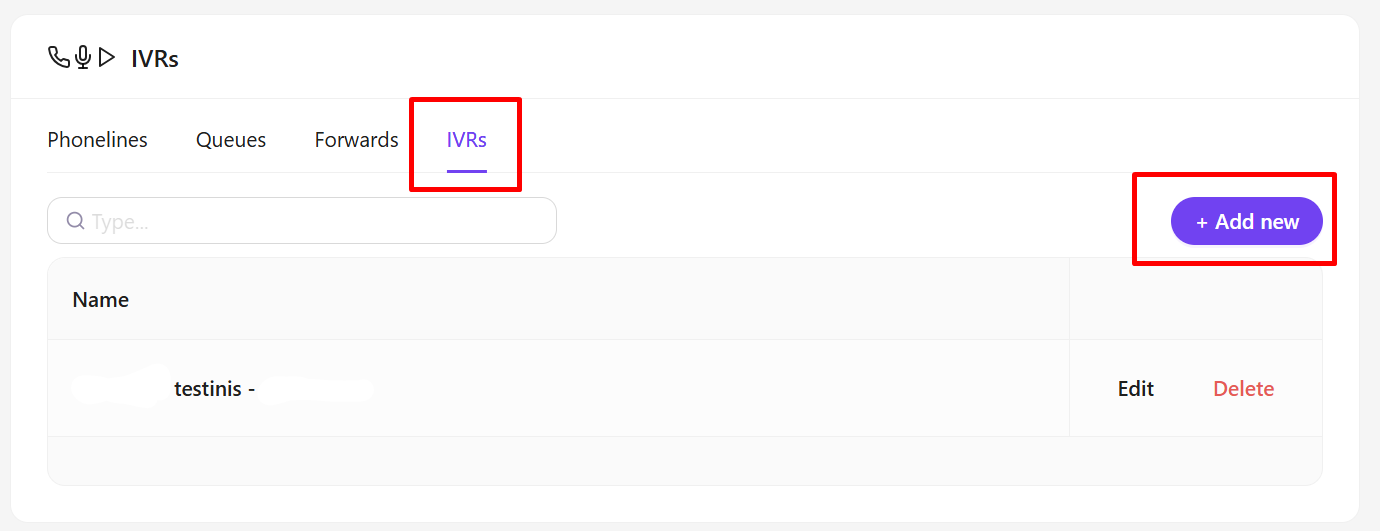
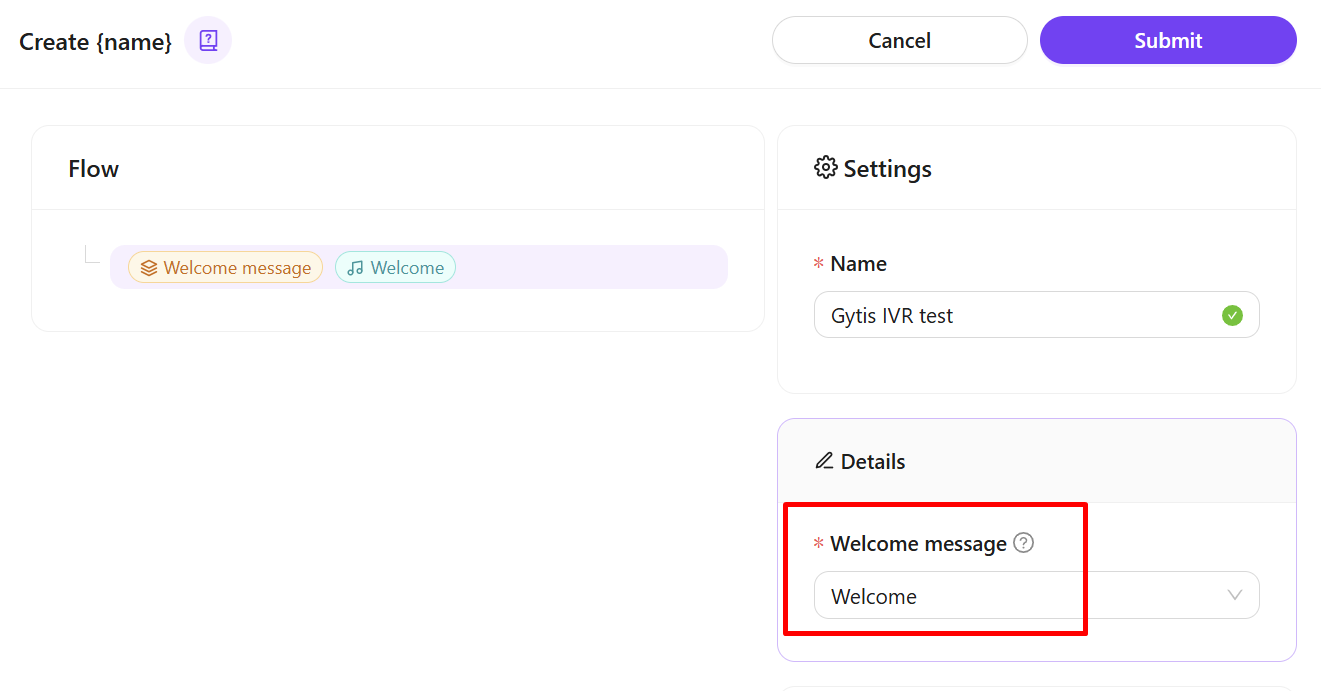
- First, upload the initial greeting message that will inform the client about the available options, e.g.: 'Hello, thank you for calling Company X. Please choose a topic: Information -> press 1, Orders -> press 2.'
- IVR button choices. Set what should happen to the client when they press the corresponding IVR options.
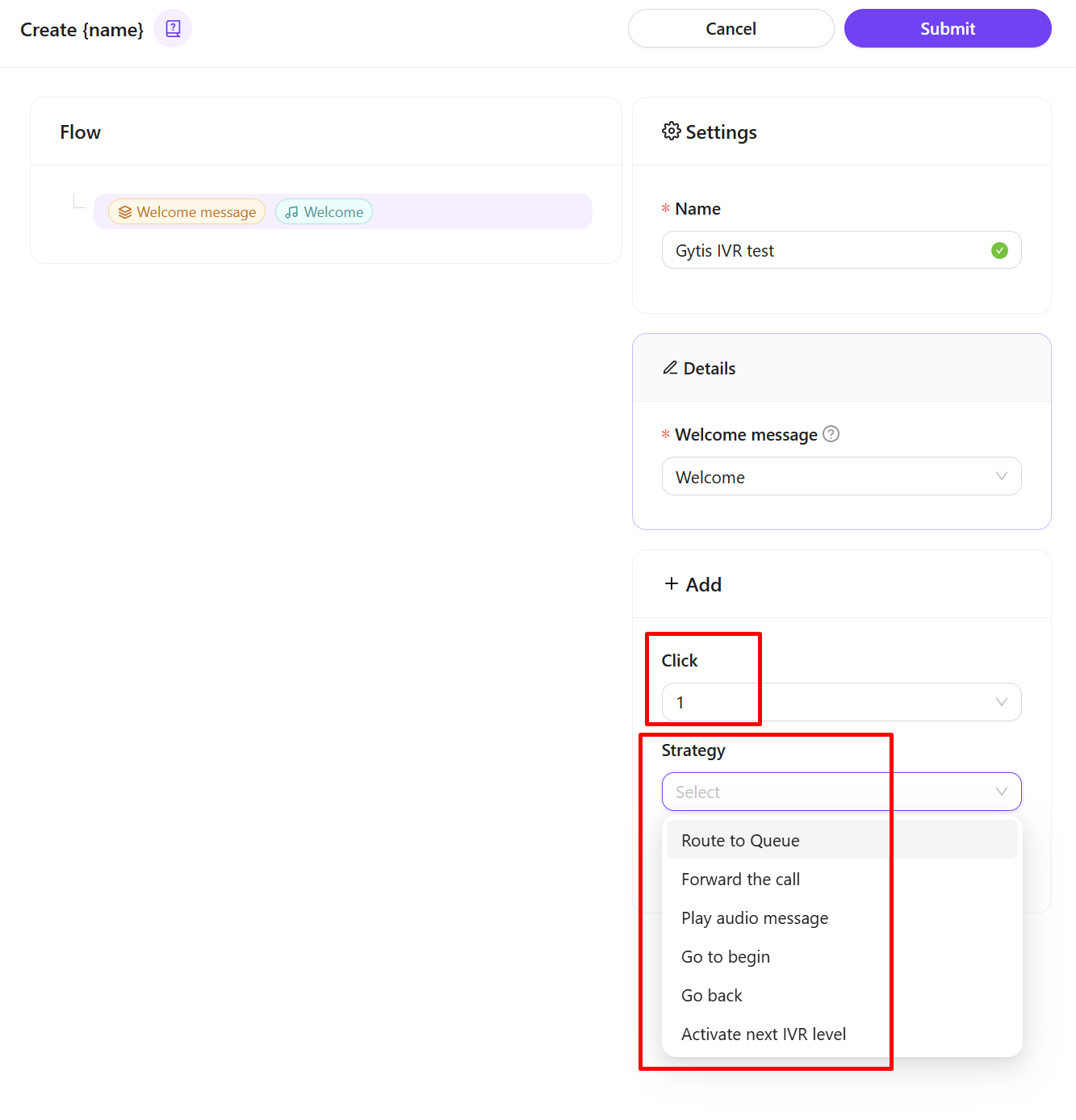
For each button press, we have 4 options:
- Route to Queue - the call goes into the agents' queue. You can select an existing agents' queue from the list or create a new one.
- Forward the Call - the call goes to a forward queue, which can include agents and external phone numbers.
- Play Audio Message - an audio message is played to the client, after which the call is terminated.
- Activate next IVR level - activates the next IVR level. This option is especially useful for directing the client to the appropriate topic.
For example:
Level 1 IVR message: 'Select a language: Lithuanian -> 1, English -> 2, Russian -> 3';
Level 2 IVR message: 'Select a city: Vilnius -> 1, Kaunas -> 2';
Level 3 IVR message would be: 'Select a topic: Information -> 1, Orders -> 2, Other questions -> 3'.
The IVR can have a maximum of 3 levels, with up to 10 options at each level (from 0 to 9). This way, you can easily create your desired IVR options tree, for example:
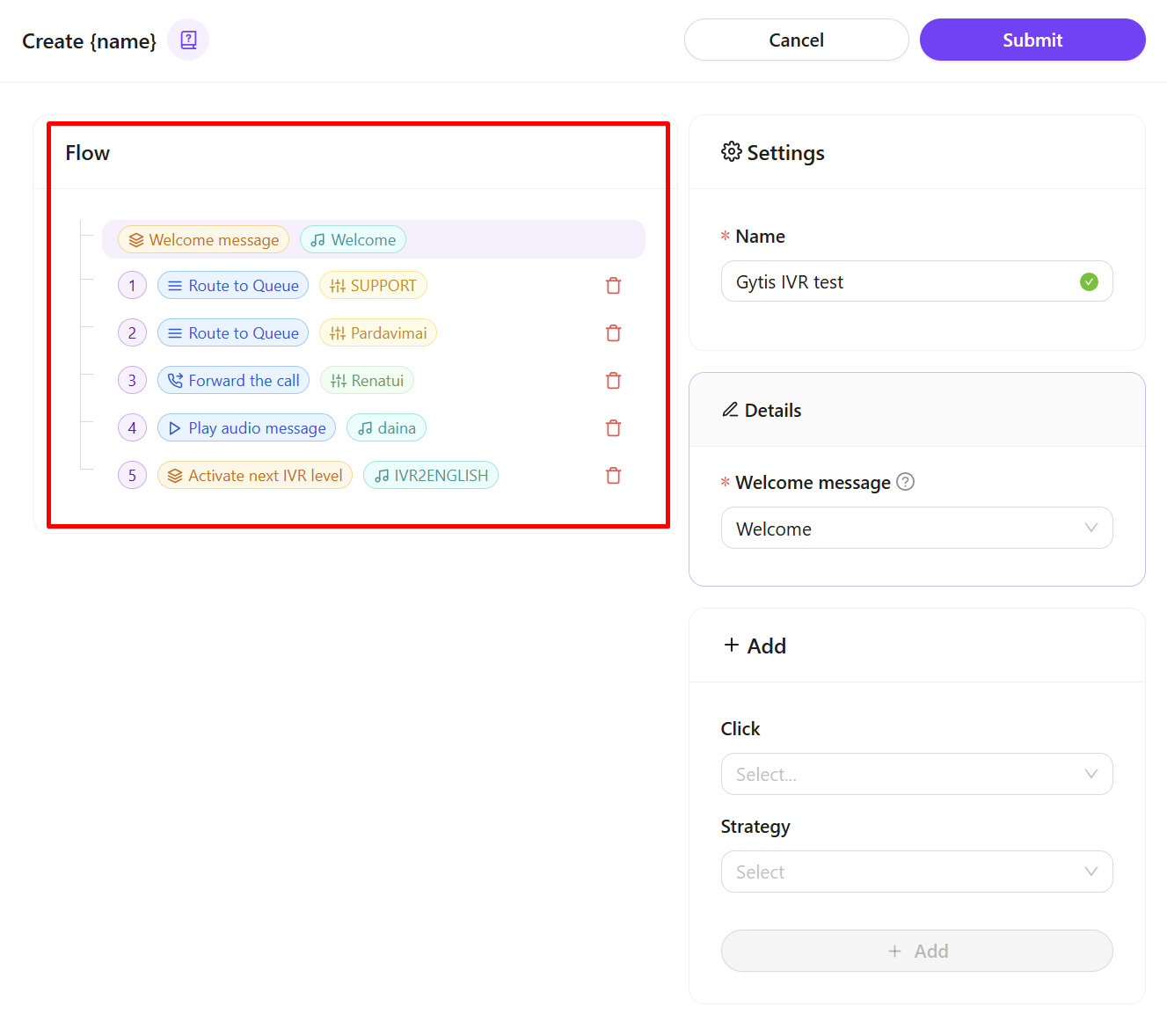
You can edit each line/option by clicking the Edit next to the corresponding line. After making changes, dont forget to click the Submit button.
‼️ IMPORTANT!!!!
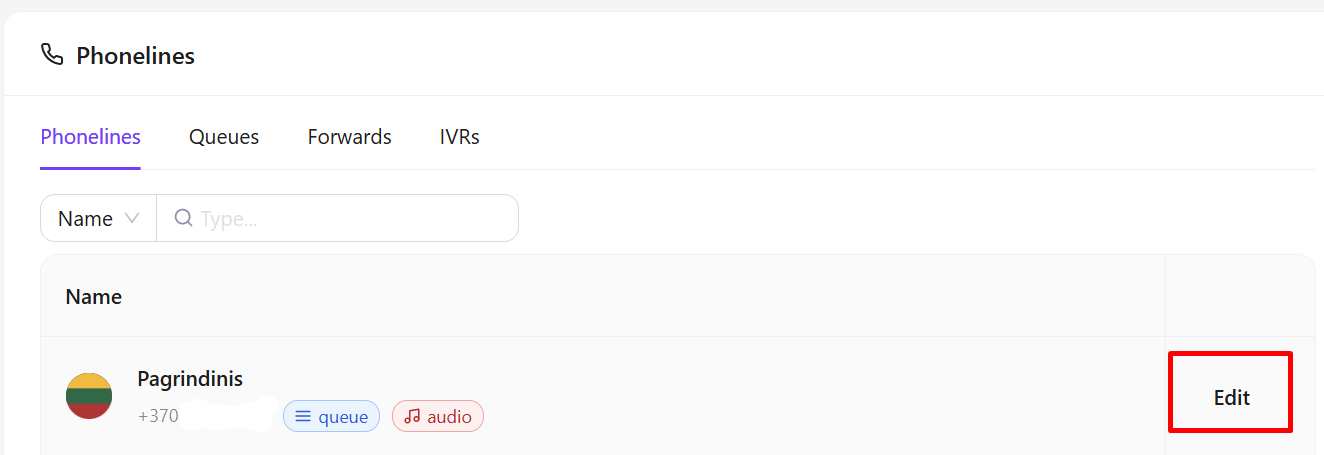
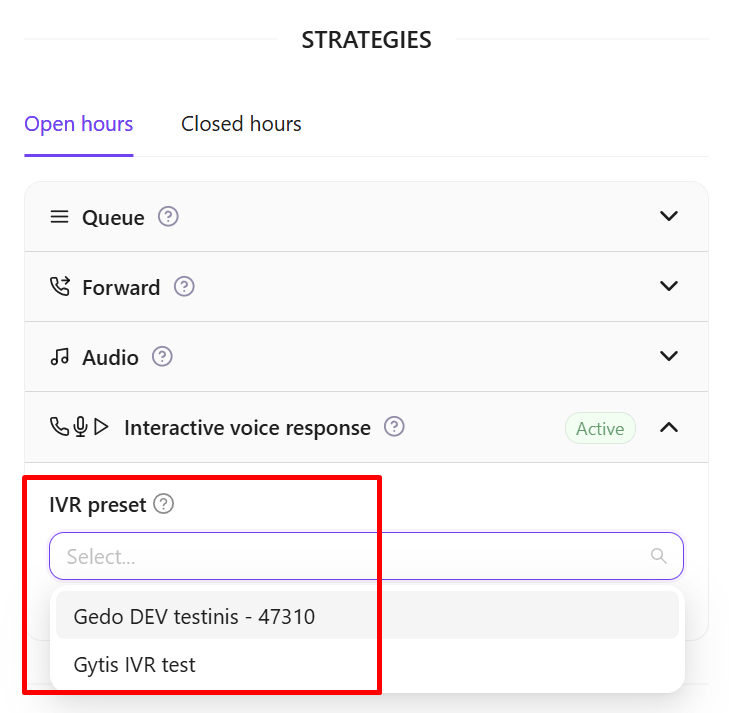
Don’t forget to assign the created IVR to your phone number: